Sep 13, 2021
Engineering
WHEN GitHub Codespaces MET Backend.AI

Kyujin Cho
AI Platform Architect
Sep 13, 2021
Engineering
WHEN GitHub Codespaces MET Backend.AI
Kyujin Cho
AI Platform Architect
The GitHub Codespaces feature, which had been operating in Private Beta, has finally been officially released to Team/Organization users. With this announcement, the GitHub team also announced that its own engineering team will now use Codespaces as their primary development environment for GitHub. In this article, we will briefly introduce what kind of tool Codespaces is and how we at Lablup are utilizing it.
What is Codespaces?
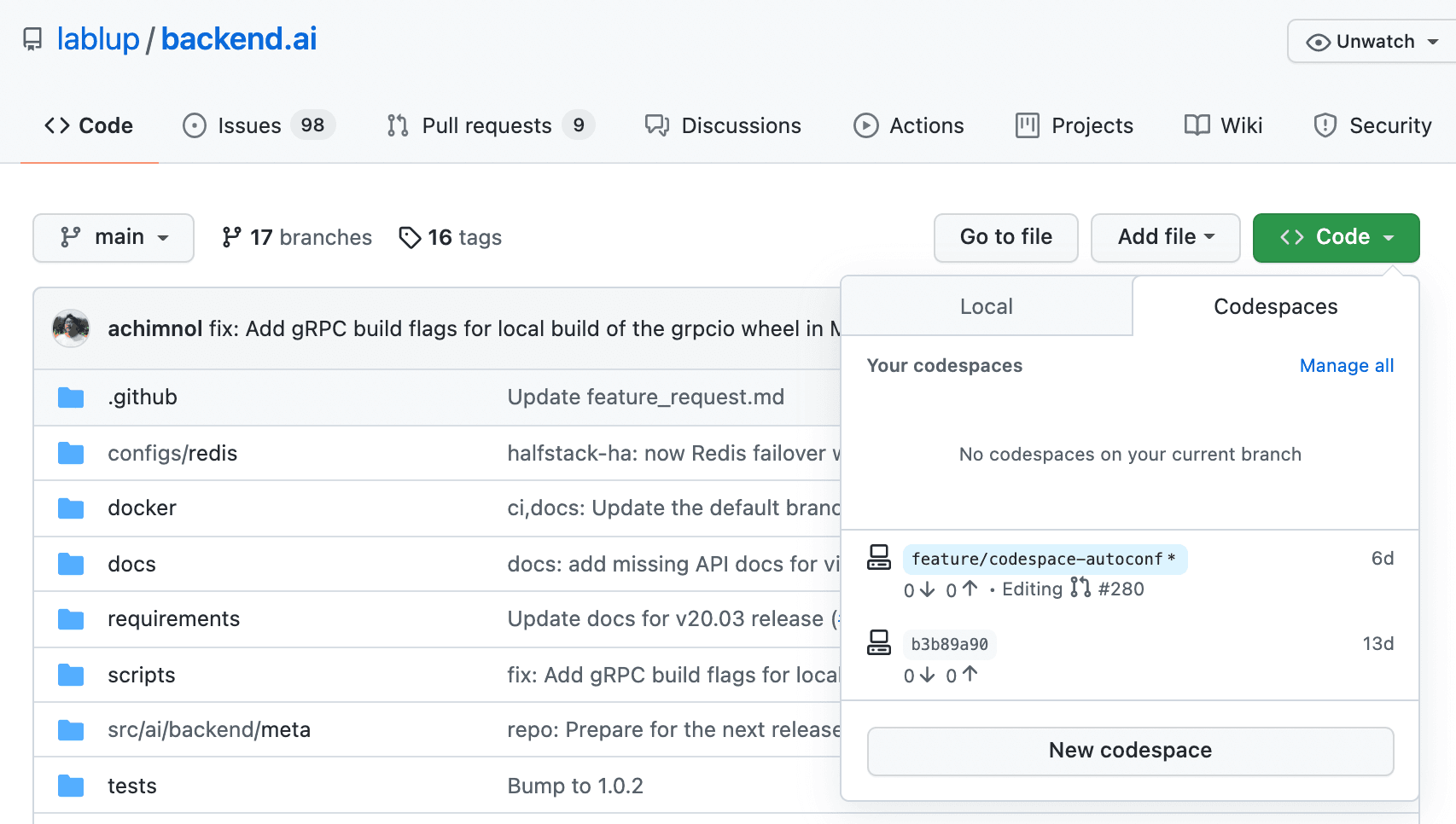 Codespaces is a virtual development environment that operates in the cloud. When you launch a Codespace, the contents of the GitHub repository are cloned as-is, and Git authentication information corresponding to your account is automatically saved to the system, allowing you to freely interact with the repository.
The biggest advantage of Codespaces is its flexibility in environment configuration. Since every Codespace runs on an individual Azure VM, users are guaranteed their configured amount of resources while also being able to use the development environment as if it were their own personal Linux PC (Docker runs too!). You can also allow access from external networks to test the environment you are developing.
However, there are also limitations compared to a general VM:
- Only x86_64 based VMs are supported.
- GPU resources are not available.
- A session that is not used for 30 minutes will automatically enter an idle state.
Understanding How Codespaces Works
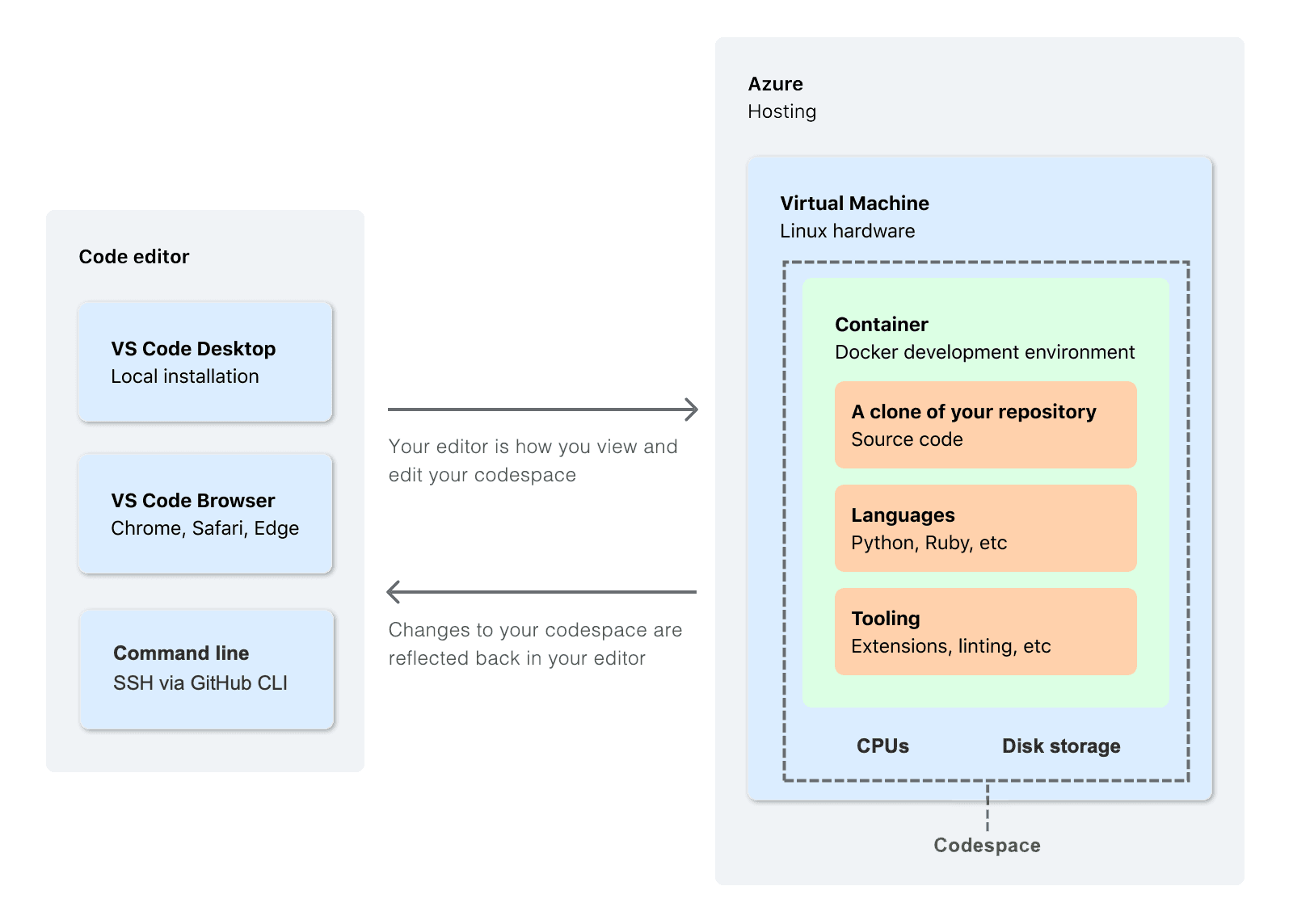
As briefly mentioned above, Codespaces fundamentally runs on an Azure VM. However, the actual Codespaces environment is set up in a Docker Container created within the VM. This is presumably because Codespaces is based on Visual Studio Code's devcontainer feature. Indeed, if you look at the logs when a Codespace is launched, you can see it using the devcontainer's CLI.
Thanks to this devcontainer technology, repository maintainers can help Codespace users to more easily build a development environment that fits the repository. This will be described further in the section below.
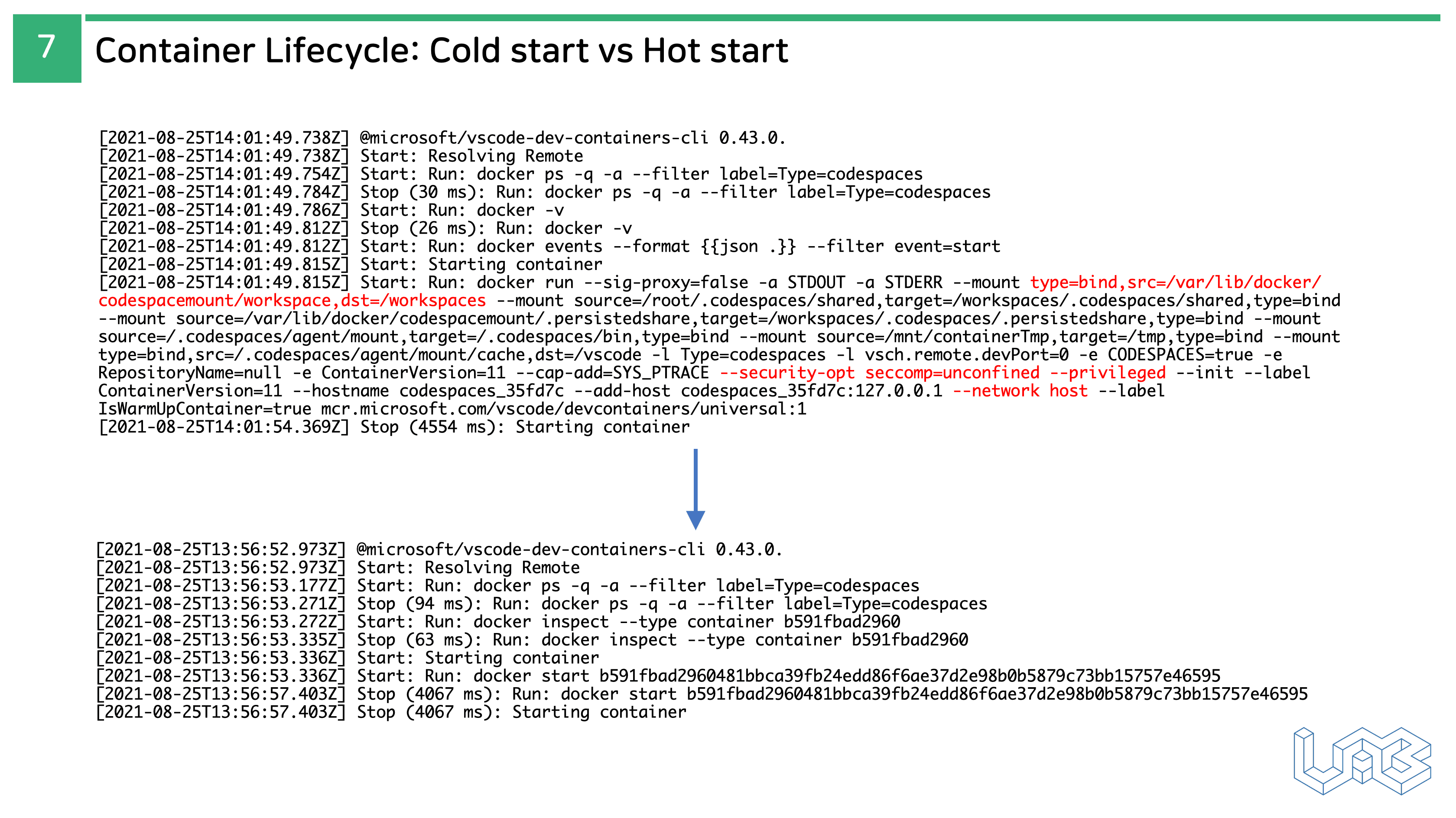
Besides showing that Codespaces is based on devcontainer, this log has a few other points worth noting.
-
/workspacesfolder mount All of a user's settings in a Codespace are stored within the/workspacesdirectory. By mounting this/workspacesfolder from an external source, the user's work is preserved even if the Codespace session ends. -
Several security settings Through security relaxation options like
-cap_add=SYS_PTRACE,-security-opt seccomp=unconfined, and-privileged, the Codespace development environment can be used like an actual Linux VM. -
Host Network usage Instead of Docker's own Bridge network, it uses the Docker host's network adapter directly. This allows IP ports opened in the container to be accessible from the host's network.
When creating a session, Codespaces automatically issues a Personal Access Token with repo permissions from the user's account, which can only access the Codespace's base repository, and adds it to the Codespace session as an environment variable named $GITHUB_TOKEN. This is later used as an authentication method by the repository's git credential helper.

Configuring Your Own Codespaces Environment
Dotfiles: User-level Customization
Dotfiles is a feature similar to Backend.AI's Automount vFolder. Each time a user starts a session, it can mount pre-specified files or folders and execute files for personal environment configuration.
To use Dotfiles, you need to create a repository named dotfiles in your GitHub account. Afterwards, the files and folders uploaded to dotfiles are added to the Codespace session based on the following criteria:
- Files/folders starting with a
.(dot) are mounted in the session's$HOMEfolder. - Files like install.sh, install, bootstrap.sh, setup, etc., are automatically executed when the session is created (for a full list of reserved filenames that can be auto-executed, please refer to this link). If the file does not have executable permission, it will not run and will result in an EPERM error.
However, Dotfiles has a limitation in that the dotfiles repository that stores the files must be a public repository. A tool you can use in this case is Codespaces Secrets.
Adding Codespaces Secrets
Codespaces Secrets is a feature that allows you to load predefined values in the form of environment variables when you run a Codespace session. It is useful when you need to use sensitive information like access tokens or passwords within a Codespace.
The following restrictions exist when defining a Secret:
- Secret names can only contain uppercase and lowercase letters, Arabic numerals, and underscore (_) characters.
- Secret names cannot start with
GITHUB_. - Secret names cannot start with an Arabic numeral.
- Secret names are not case-sensitive.
- You can add up to 100 Secrets, and the size of an individual Secret cannot exceed 64 KB.
An added Secret can be called within the Codespace session as an environment variable of the same name.
Example: If you registered a Secret named API_KEY, you can access it with $API_KEY.
devcontainer.json: Project-level Customization
While the Dotfiles and Codespaces Secrets introduced earlier are features that the user running the Codespace session can configure, devcontainer.json is a personalization option that can be configured at the repository level where the Codespace session is run.
{
   "name": "GitHub Codespaces (Default)",
   "build": {
   	"dockerfile": "Dockerfile"
   },
   "settings": { ... },
   "remoteUser": "codespace",
   "overrideCommand": false,
   "mounts": ["source=codespaces-linux-var-lib-docker,target=/var/lib/docker,type=volume"],
   "runArgs": [
   	"--cap-add=SYS_PTRACE",
   	"--security-opt",
   	"seccomp=unconfined",
   	"--privileged",
   	"--init"
   ],
   // Add the IDs of extensions you want installed when the container is created.
   "extensions": [
   	"GitHub.vscode-pull-request-github"
   ],
   // Use 'forwardPorts' to make a list of ports inside the container available locally.
   // "forwardPorts": [],
   // "oryx build" will automatically install your dependencies and attempt to build your project
   "postCreateCommand": "oryx build -p virtualenv_name=.venv --log-file /tmp/oryx-build.log --manifest-dir /tmp || echo 'Could not auto-build. Skipping.'"
}
This file is a part of the devcontainer.json file used by default when creating a Codespace session. You can configure the project's Codespace session in various ways, from the Devcontainer image and Docker settings for the Codespace session to Shell commands that can be executed during session setup. The items configurable via devcontainer can be found here.
Getting Started with Backend.AI Development on GitHub Codespaces
Backend.AI WebUI running in Codespaces
In response to the official release of Codespaces, we at Lablup are also preparing so that you can get started with Backend.AI using Codespaces.
{


e": "Ubuntu",
	"postCreateCommand": "bash /workspaces/backend.ai/.devcontainer/bootstrap.sh",
	"forwardPorts": [60
22, 8090, 8091]
}
This devcontainer.json serves to set up Backend.AI's main components in the Codespace session. Through the bootstrap.sh specified in postCreateCommand, it runs an Auto-Installer script optimized for the Codespace environment, and the forwardedPorts option pre-opens the main ports required to access the Backend.AI cluster.
Summary
In my personal opinion, GitHub Codespaces could become the most powerful product among the cloud-based development environments that have been serviced so far. It supports almost all the features of Visual Studio Code, allows for configuring an environment that is hardly different from a regular Linux VM, and most importantly, it has the strong backing of Microsoft.
However, it is unfortunate that the Codespaces feature is still only activated for team-level accounts. If you wish to contribute to Backend.AI through Codespaces, we recommend reading the Backend.AI Open Source Contribution Guide while you wait!
