
Backend.AI FastTrack Major Updates (September - December 2025)
This post summarizes the key changes implemented in Backend.AI FastTrack 3 from version 25.13.0 (September 30, 2025) through version 25.18.0 (January 07, 2026).
Release Policy Update
Starting in 2025, Backend.AI FastTrack follows the same release policy as Backend.AI. Long-Term Support (LTS) versions are released at the end of Q1 and Q3 each year, focusing on stability with maintenance and bug fixes provided throughout the year. New features and improvements are released separately to maintain LTS stability while ensuring continuous platform evolution. Following version 25.18, the Backend.AI blog will feature updates corresponding to future LTS releases only.
1. Improved pipeline workflow
1.1. New support for approval task
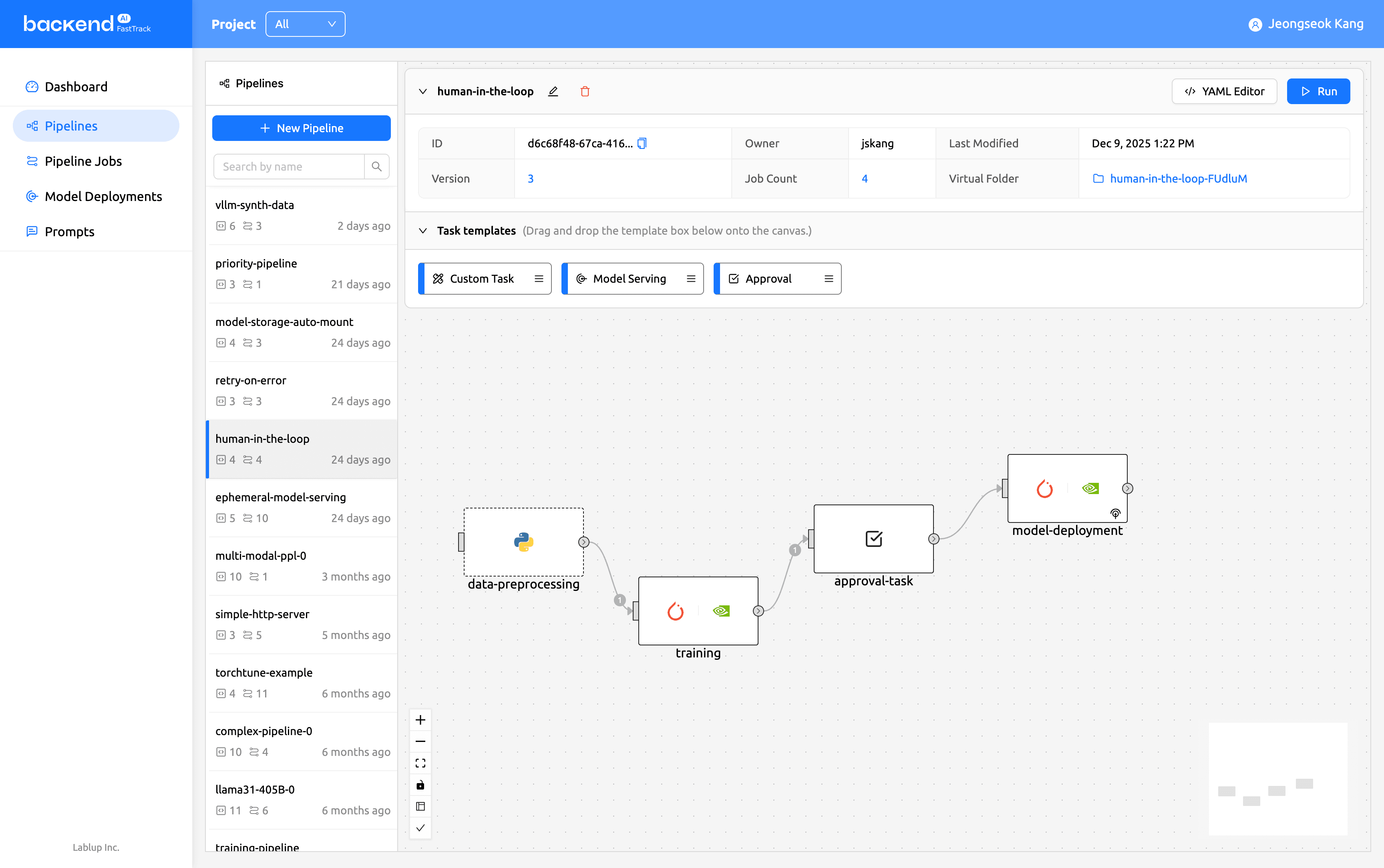
An approval task has been added to the pipeline workflow. For tasks requiring approval from an assignee or manager, the approval stage can be configured within the template screen. For example, human intervention can be inserted mid-workflow to prevent unnecessary resource usage during model training or deployment.
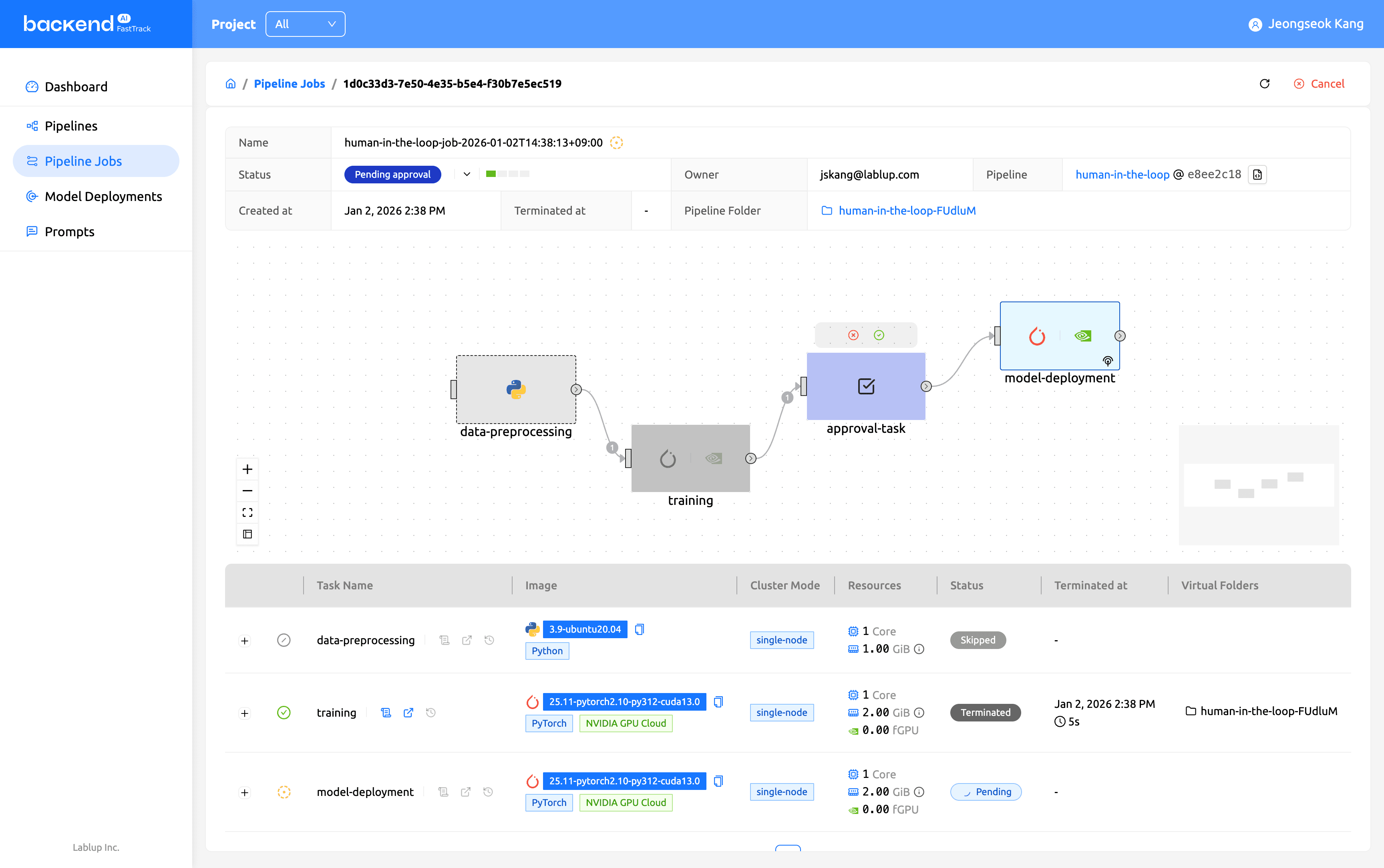
View the status, owner, creation time, task flow, execution environment for each task, and resource allocation information for the selected pipeline job all within a single screen.
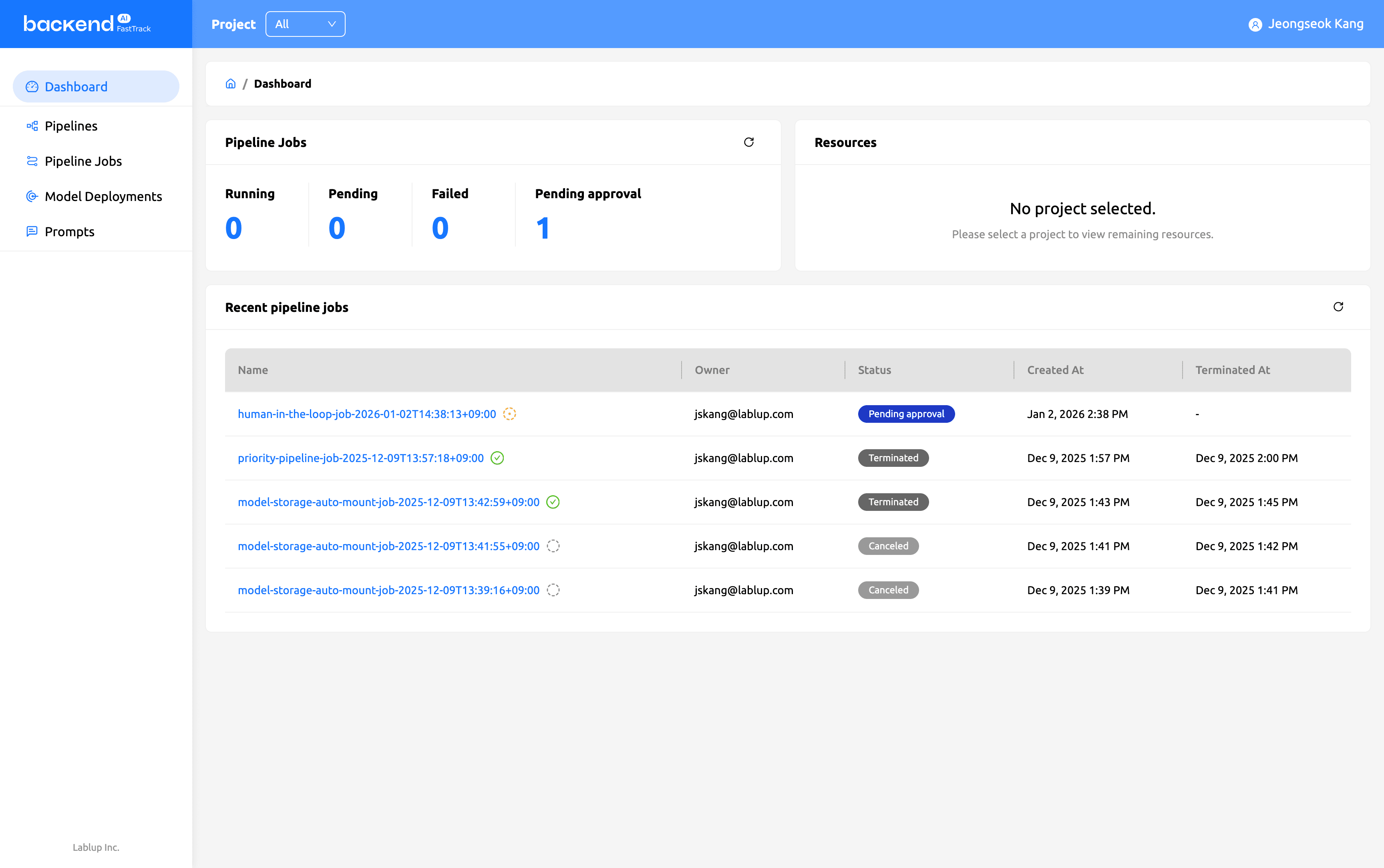
View the number of items marked ‘Pending Approval’ in the ‘Pipeline Tasks’ card at the top of the dashboard page. Additionally, monitor the execution status—including ‘Pending Approval’—in real time via the ‘Status’ tab within the ‘Recent Pipeline Tasks’ card.
1.2. Auto-retry strategy
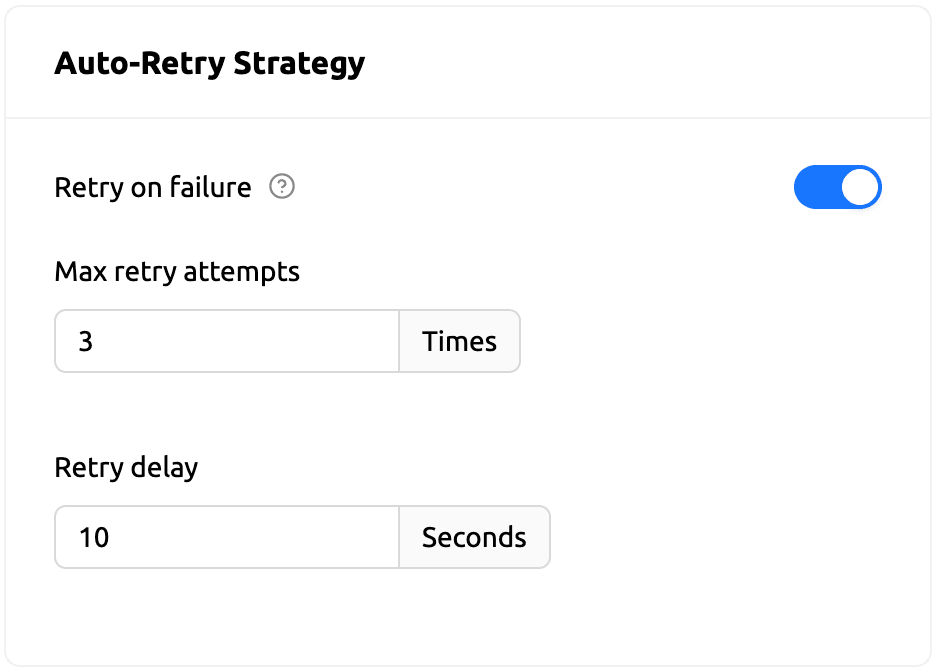
An automatic retry feature for failed task instances has been introduced. The retry count can be set up to 999 times, preventing pipeline failures caused by temporary errors. View the current status via the retry count badge in the task instance details.
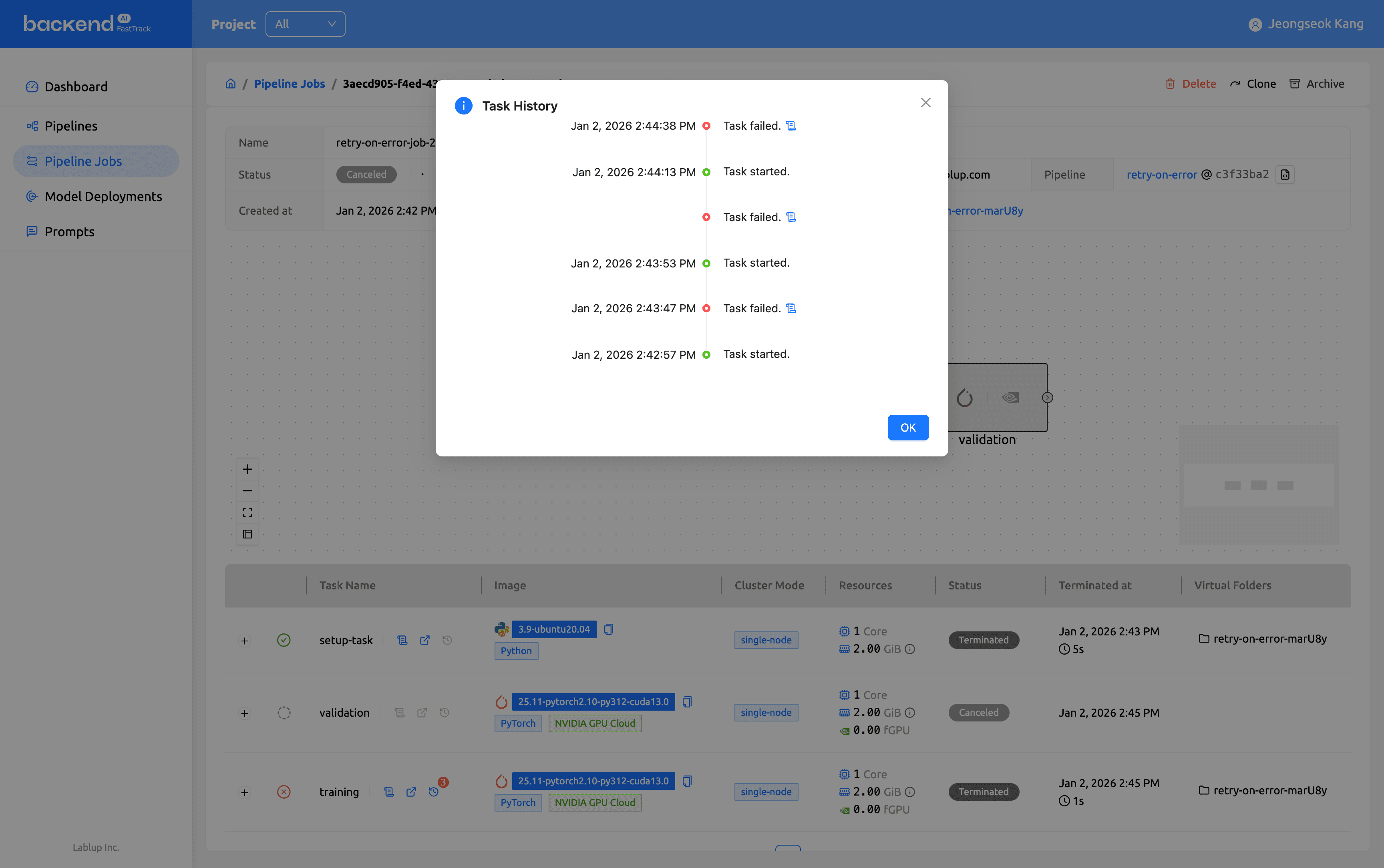
Retried execution records are displayed in chronological order, enabling easy verification of success or failure.
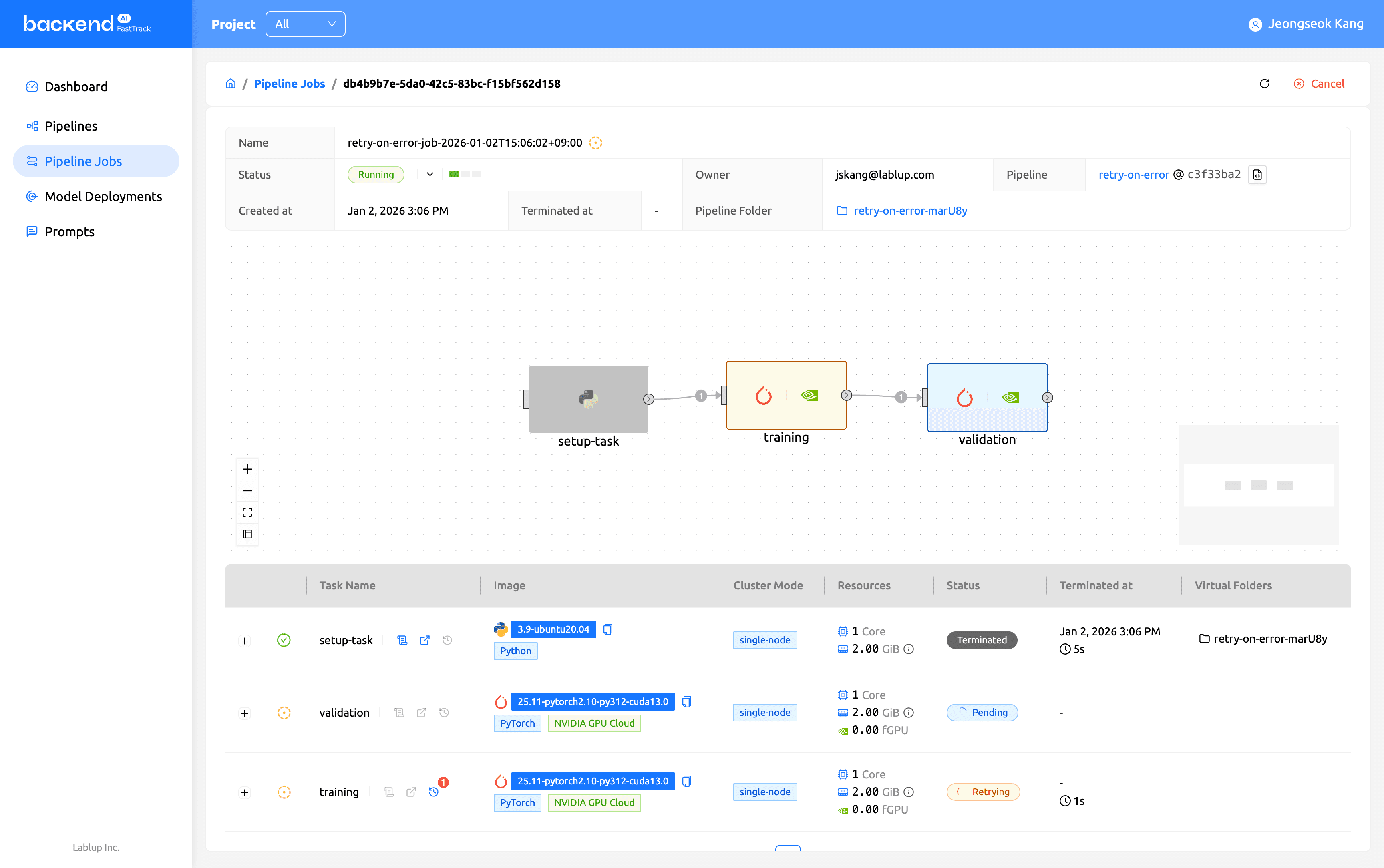
Failed tasks are automatically retried a set number of times, and the retry status is displayed with a numbered badge next to the task name.
1.3. Model storage auto-mount
When running a pipeline, model storage is automatically mounted to all sub-tasks, enhancing user convenience.
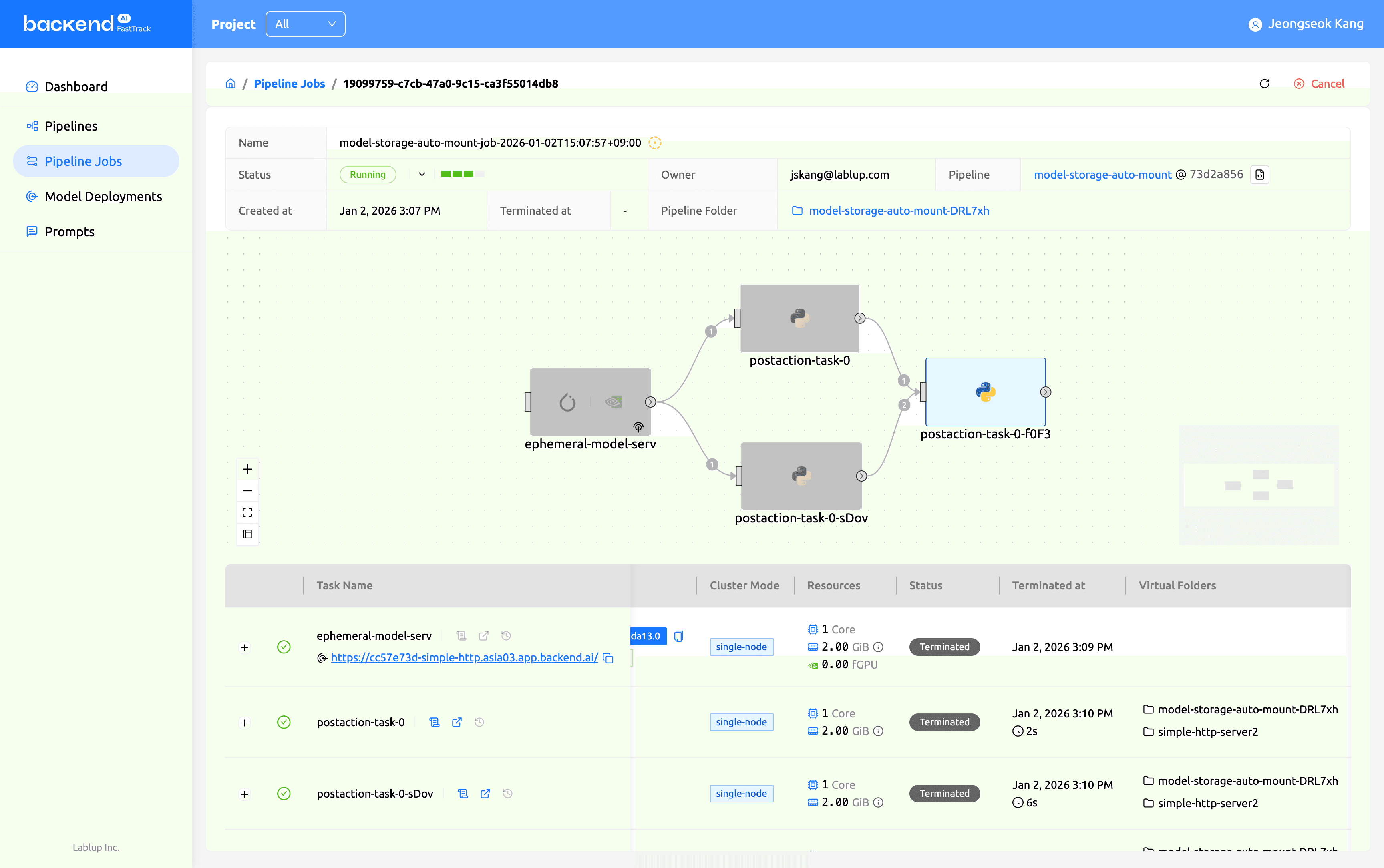
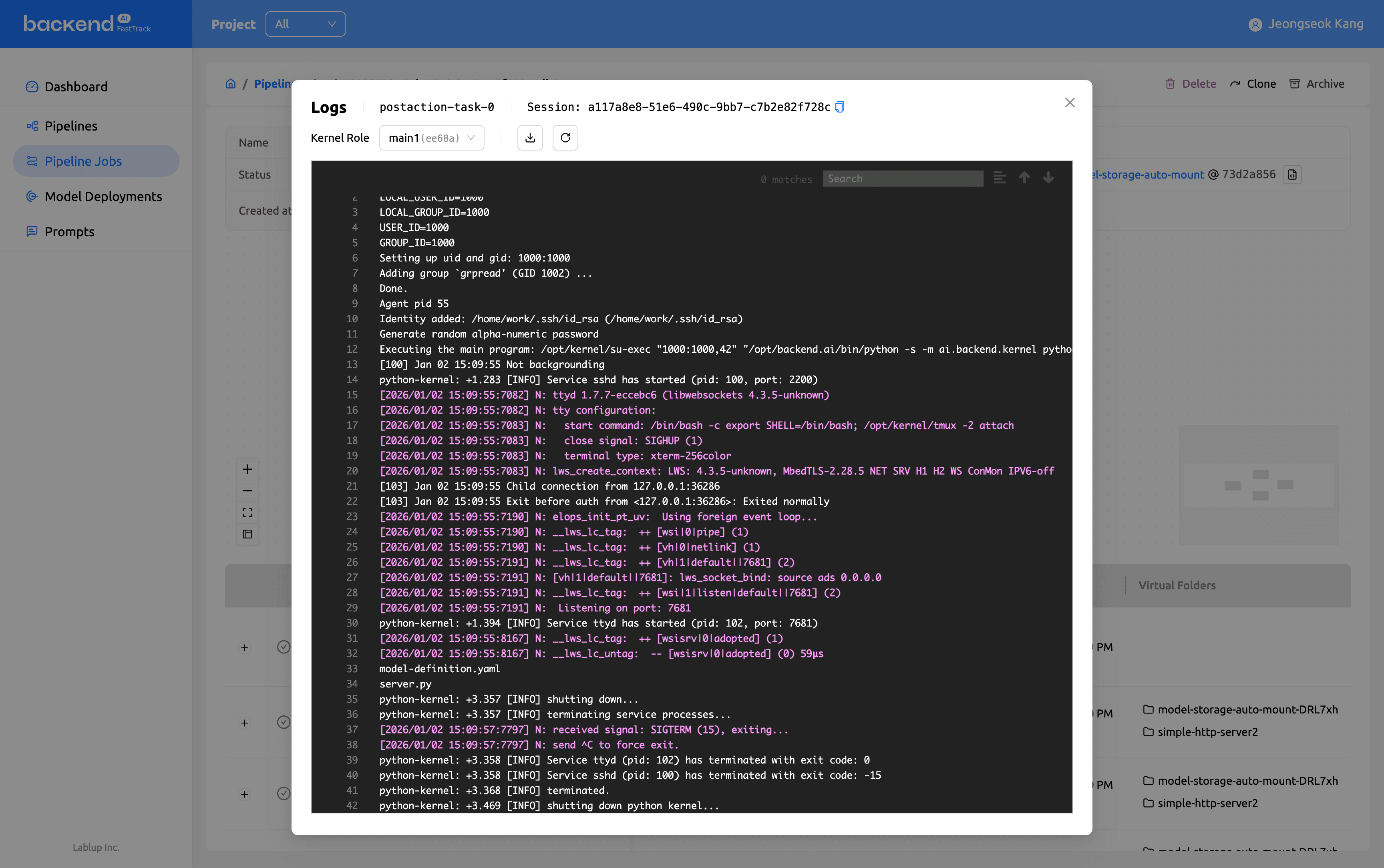
Monitor the entire execution process in real time, including storage access.
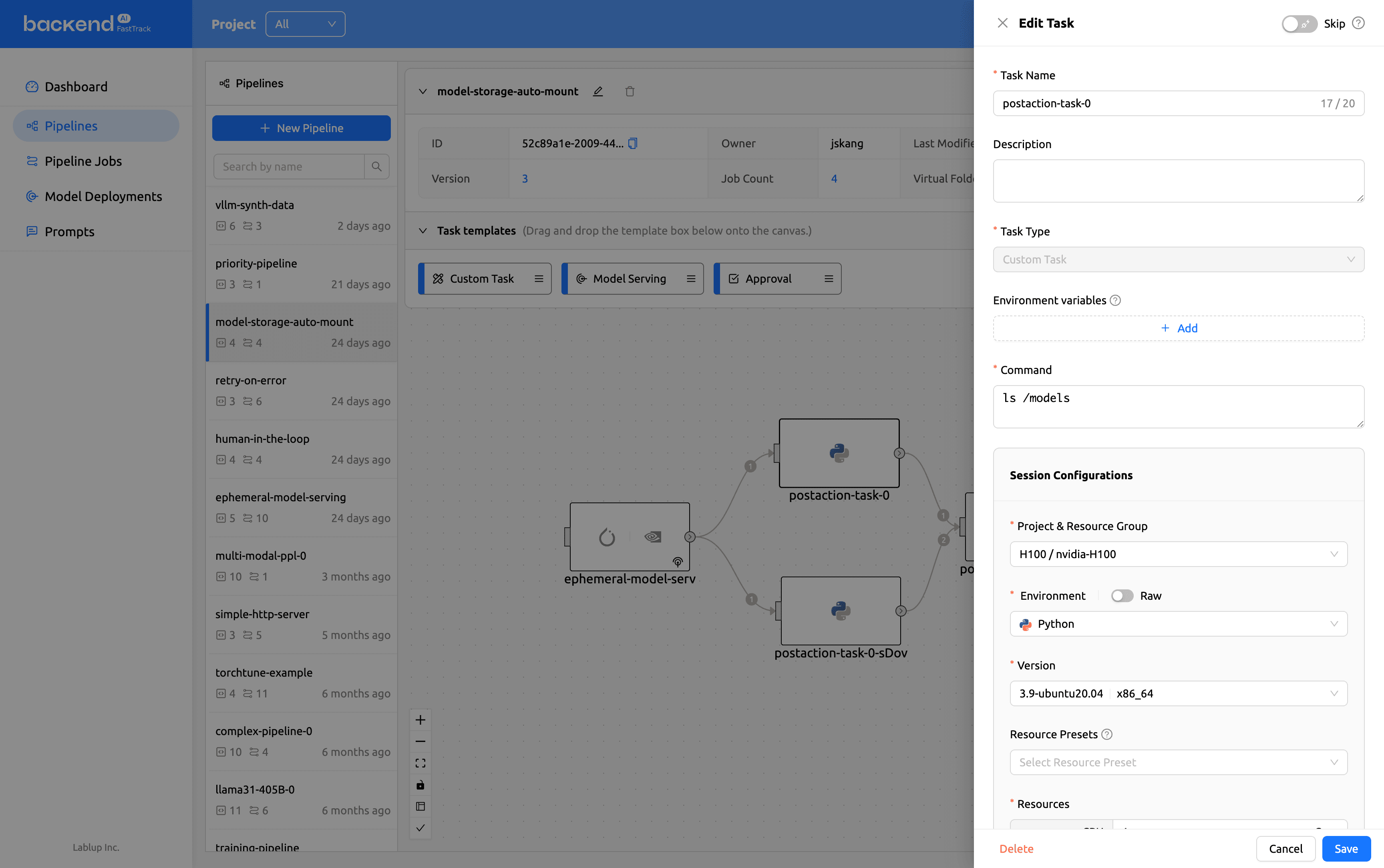
Configure commands, environment variables, execution environments, resource groups, and presets directly from the UI.
1.4. Integrated priority control
Priority control for pipeline jobs is consolidated at the PipelineJob level, enabling consistent management of pipeline job priorities.
![pic-01-4-priority.png]](https://cdn.lablup.com/pic_01_4_priority_0040b6511d.png)
Set the priority of the pipeline when running it. (Range: 0–100, default 10)
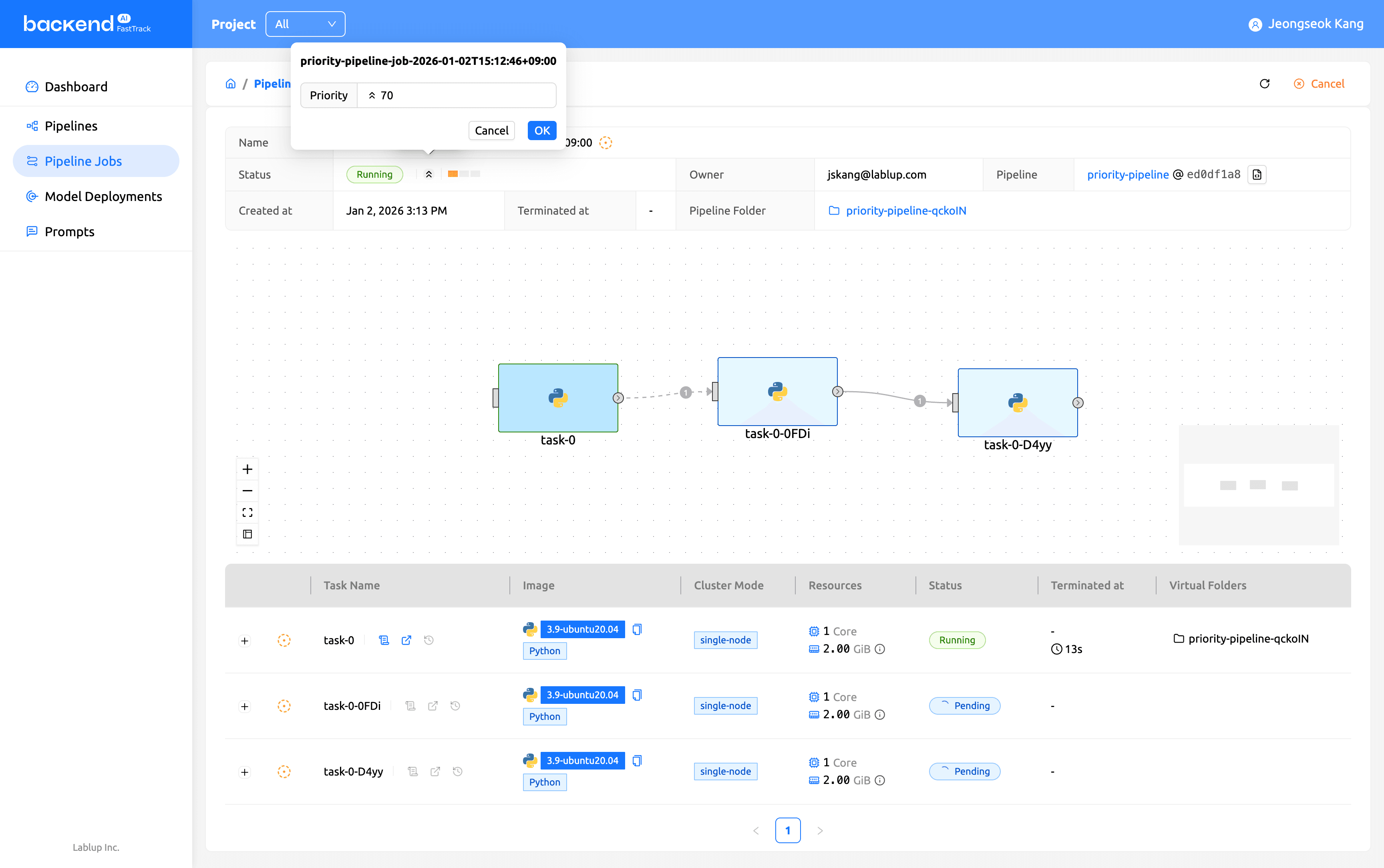
Priorities can be modified on the task screen and are immediately reflected in the scheduler after modification.
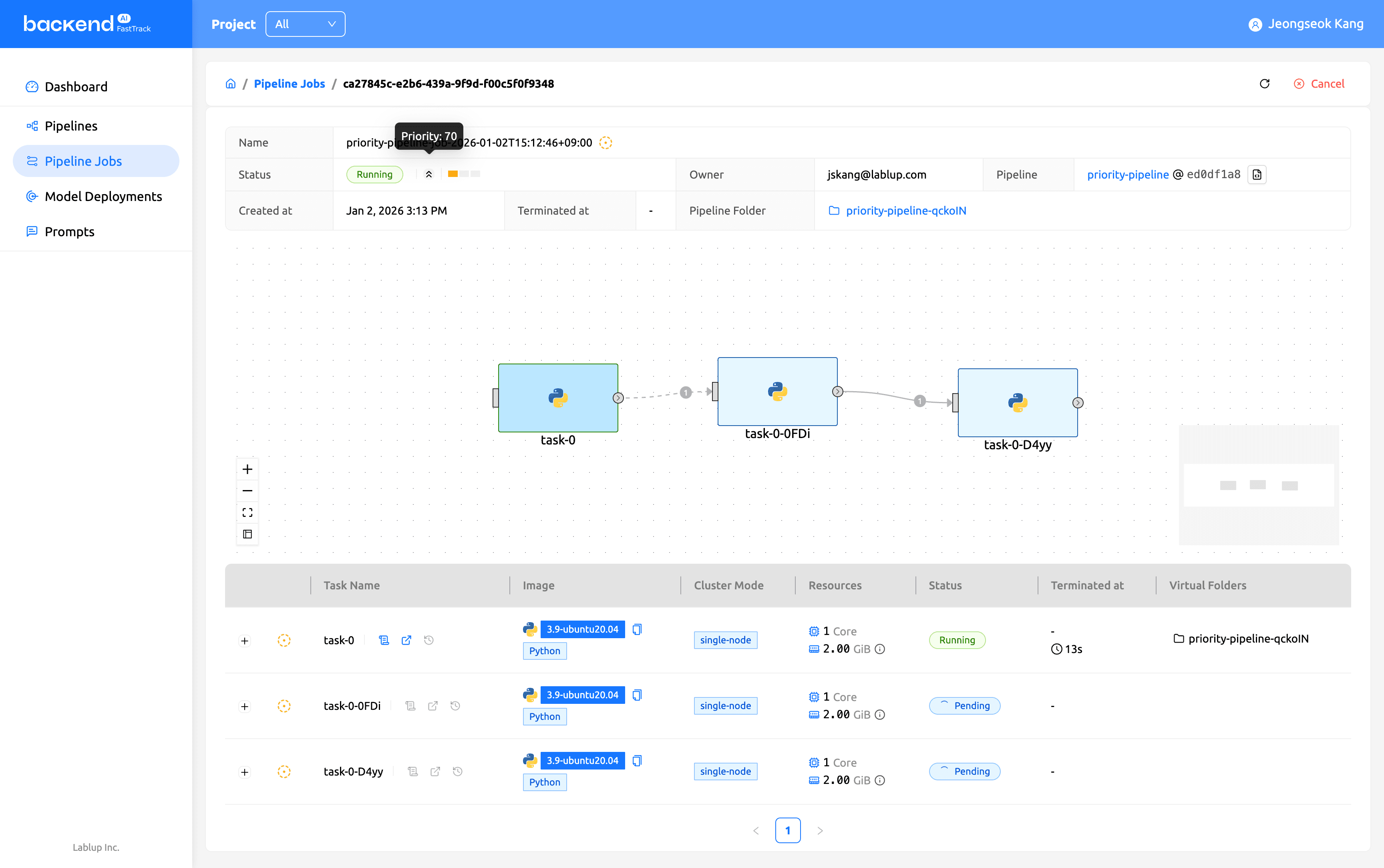
Check the current task priority in the top information panel.
2. Improved model serving functionality
2.1. Ephemeral model serving
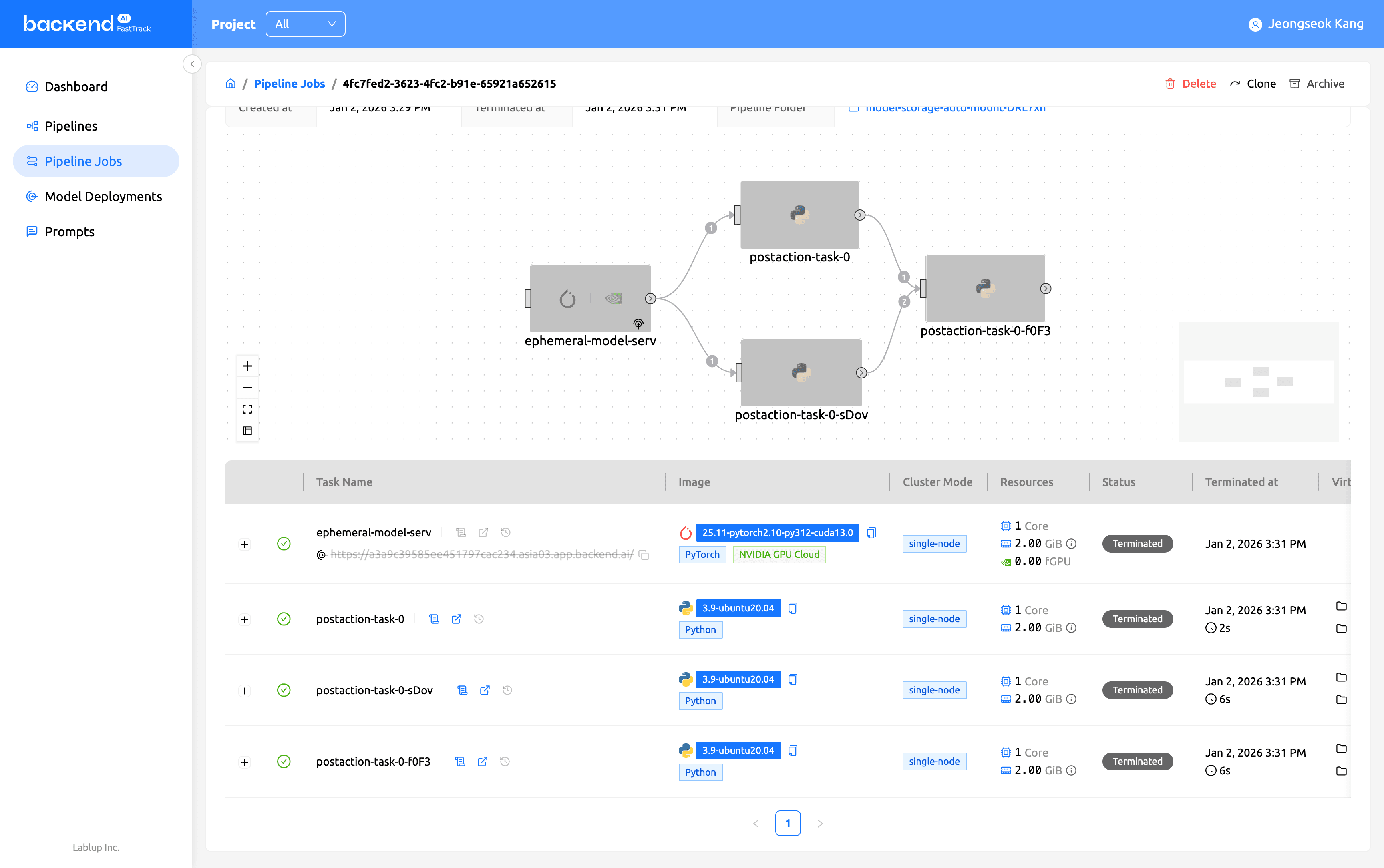
A temporary model serving task feature has been added for benchmarking. When creating a model serving task, select the ‘Run as temporary model service’ checkbox in the advanced settings to enable it. If a task instance error occurs, the temporary deployment automatically terminates to prevent resource waste.
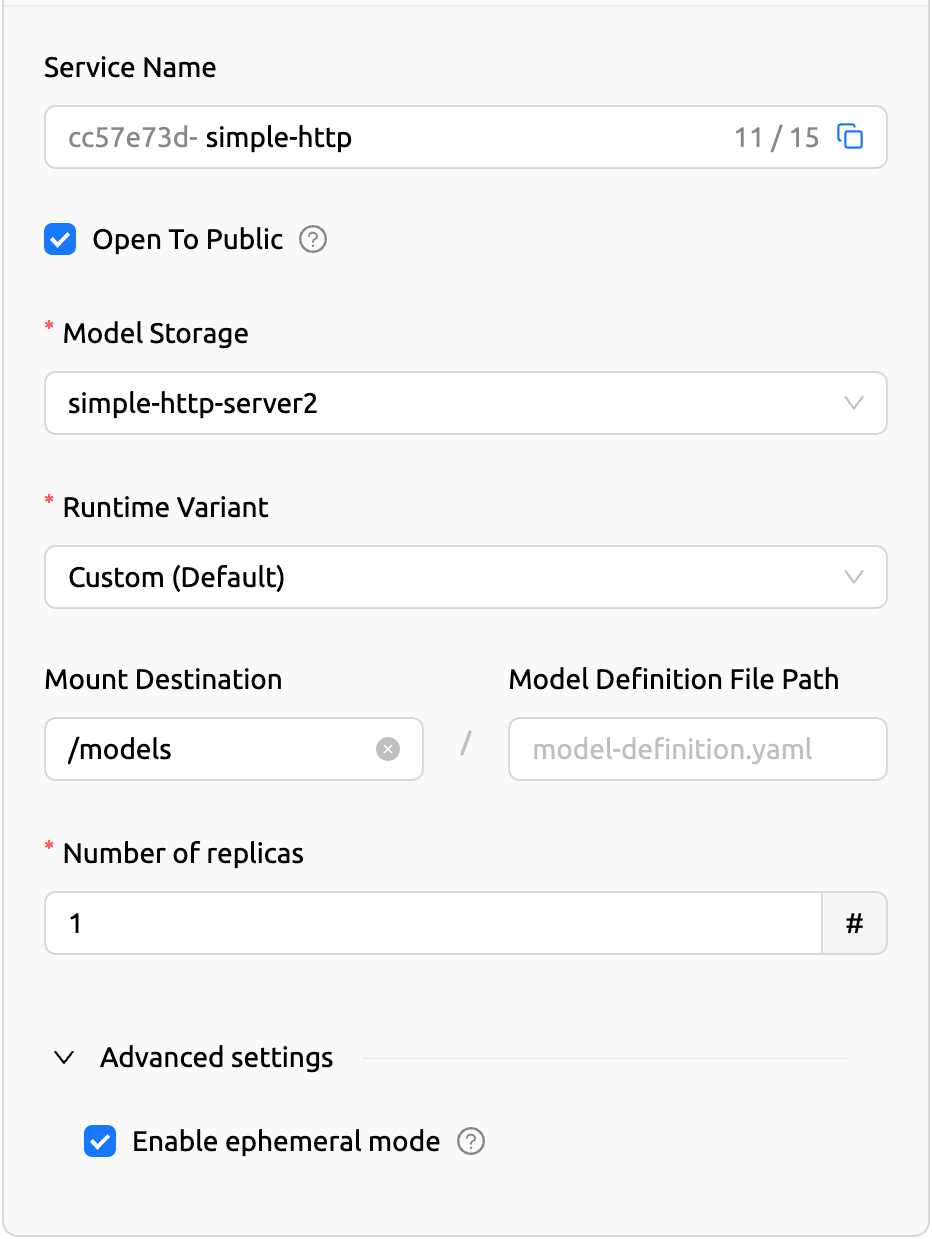
Enable the ‘Run as temporary model service’ option in Advanced Settings. Serving tasks running in temporary mode automatically terminate upon completion or error, canceling any associated post-processing tasks and reclaiming resources.
2.2. Supports architecture option
In previous versions of FastTrack, only the execution environment version could be selected when configuring sessions. Starting with version 25.17, the architecture option can be specified when creating services and sessions. This enables the construction of experimental environments tailored to various hardware architectures.
| Existing session configuration (Before) | New architecture dropdown (After) |
|---|---|
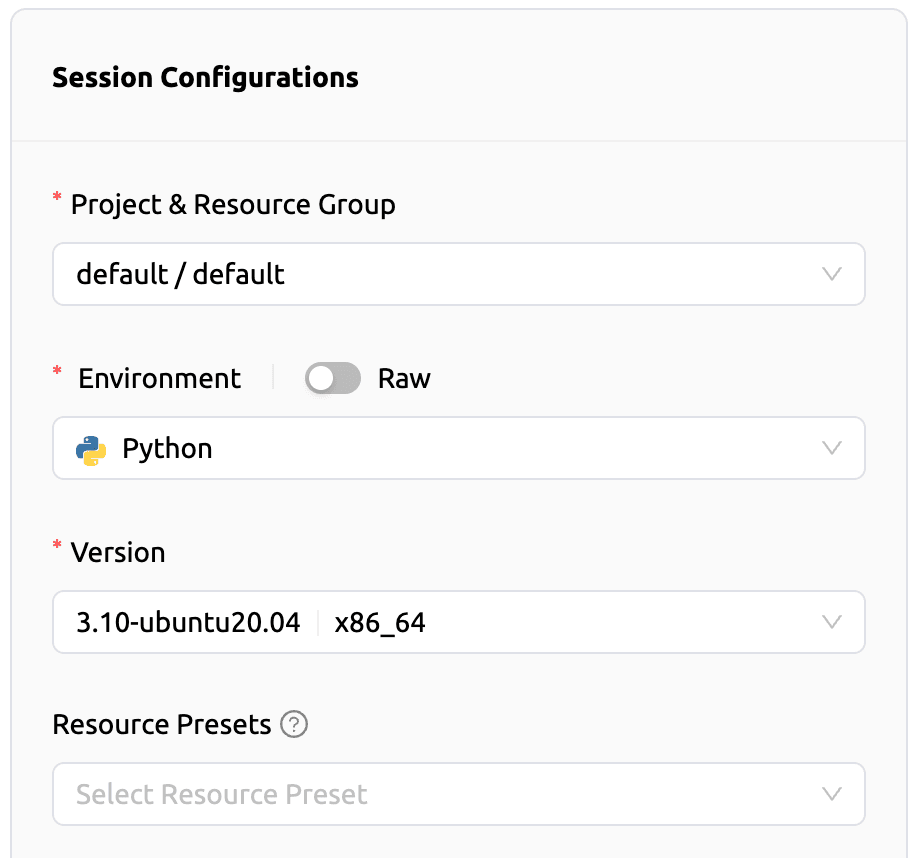 | 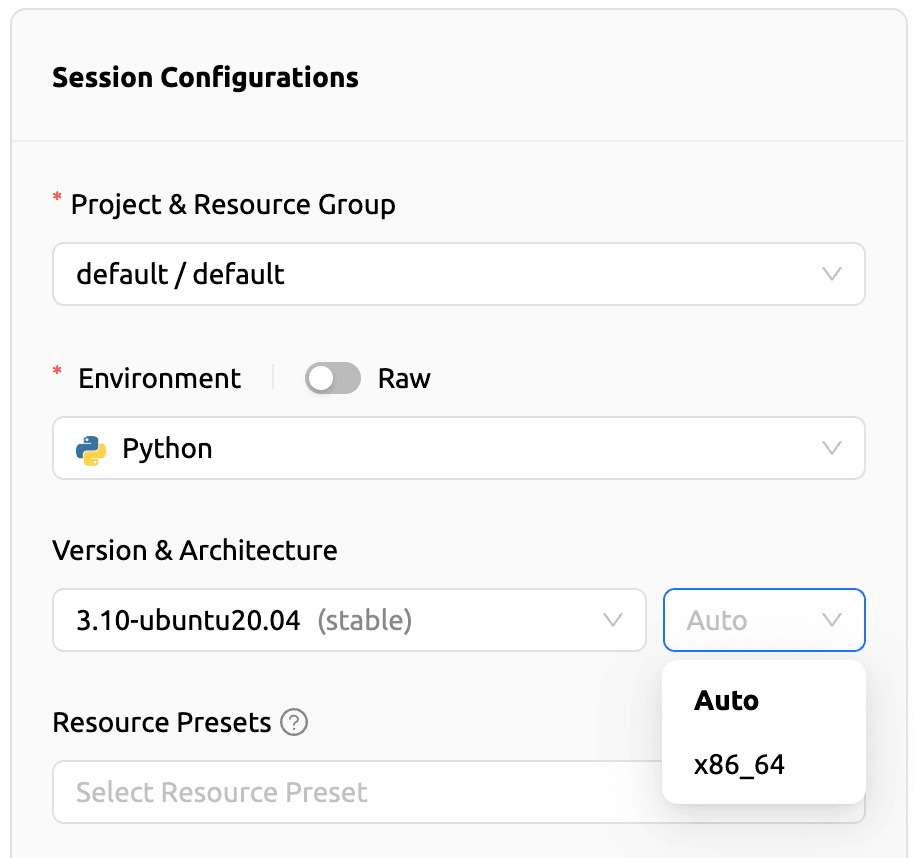 |
| Only version selection was possible, and architecture could not be specified separately. | Choose ‘automatic’ or a specific architecture (such as x86_64). For images supporting multiple architectures, specify the architecture explicitly to match the deployment environment. |
2.3. Improving service deployment stability
The model deployment rollout strategy has been restored, and a reconciliation feature for deleted model deployments has been added via out-of-band. Additionally, a feature has been implemented that waits until the serving task deployment reaches a healthy state.
3. Resource preset
Resource preset support has been added, allowing easy selection of predefined resource configurations. Resource presets incompatible with system constraints are automatically disabled, and only presets that comply with accelerator resource limits are displayed.
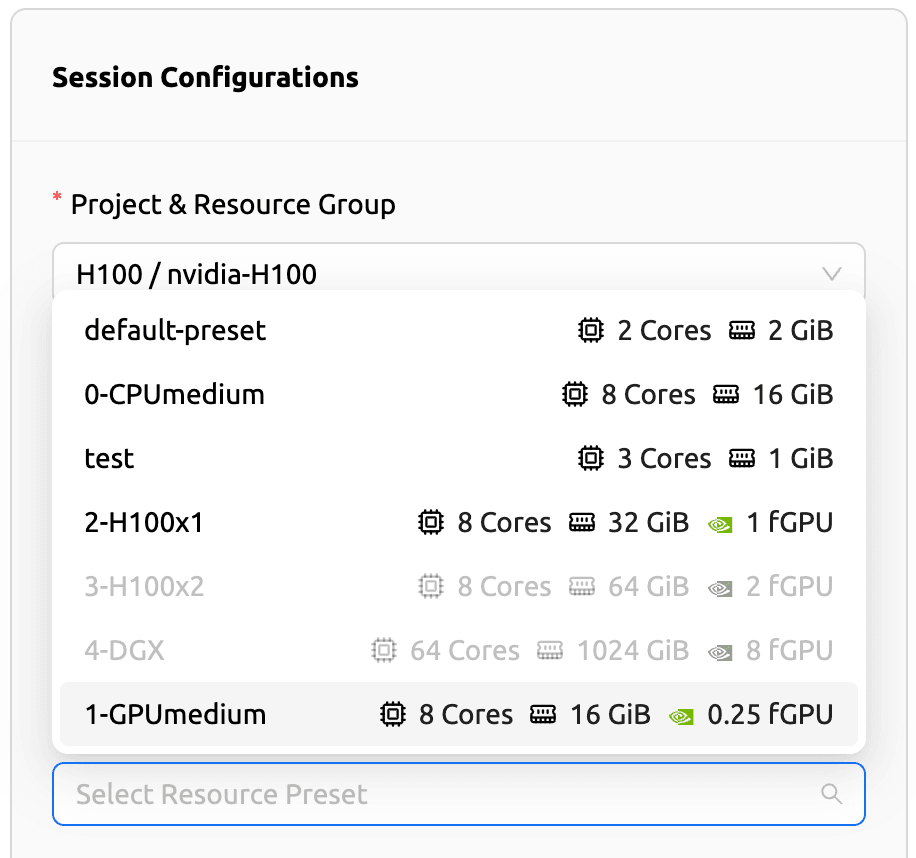
Available presets are displayed in plain text, while presets that do not meet system constraints are shown in gray. This allows users to distinguish in advance which presets are unavailable, ensuring they can only select configurations that are executable.
Table 1: Improvements to resources presets
| Function | Description |
|---|---|
| Preset selection | Predefined resource configurations available for selection |
| Compatibility check | Automatically disable presets that do not meet system constraints |
| Accelerator restriction compliance | Only display presets that meet accelerator resource limits |
4. Improved UX
4.1. Global error boundary
Improved user experience by pinpointing error locations on the screen when issues occur. The 25.18 update introduced a global ErrorBoundary for React applications. Even when errors occur, the sidebar and header remain intact, displaying error messages only within the affected area. Users can continue their work by clicking the ‘Retry’ button or navigating to other menus.
| Current error screen (Before) | Error screen with ErrorBoundary (After) |
|---|---|
 | 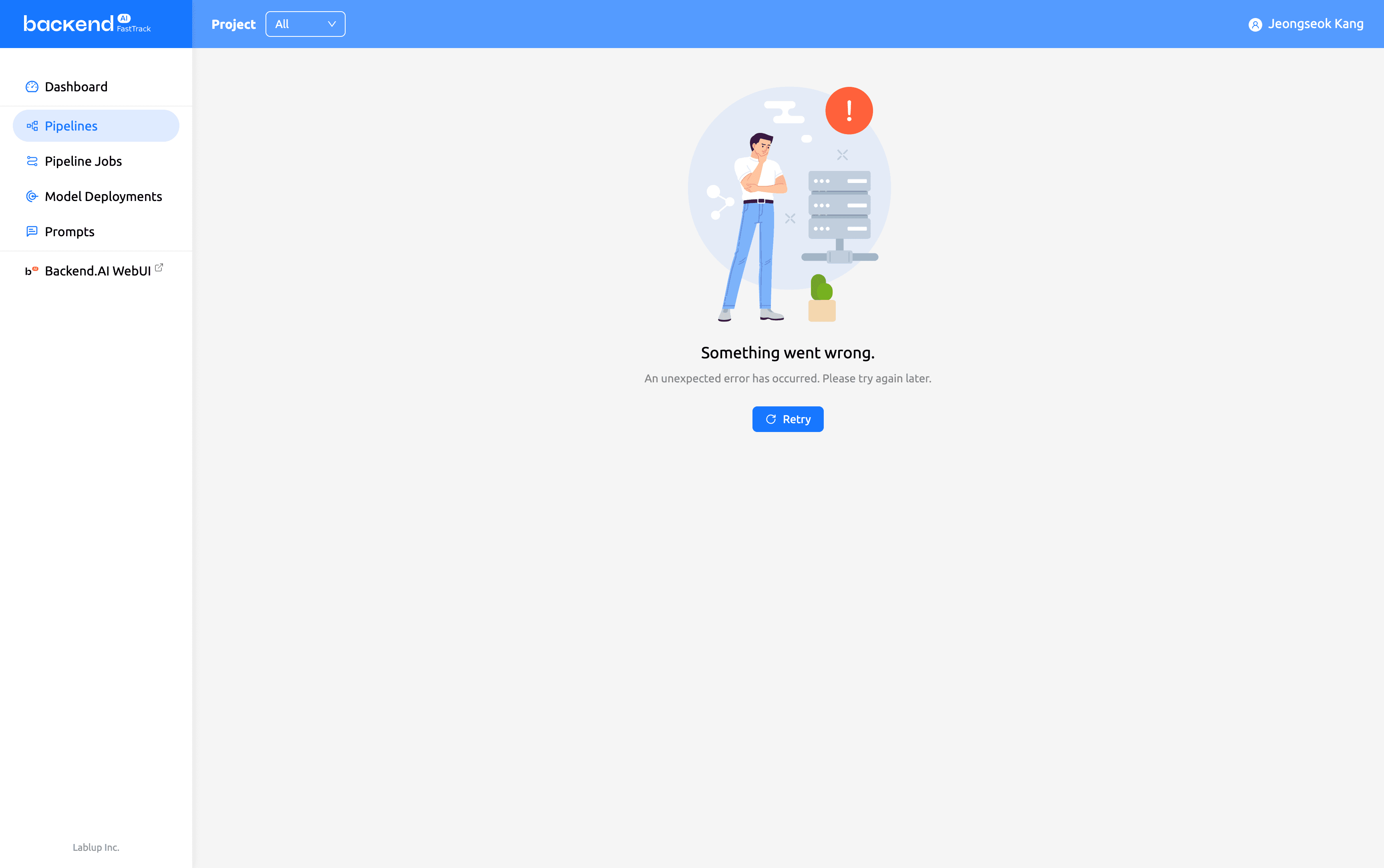 |
| The entire page was replaced with an error message, preventing navigation to other menus. | Even if an error occurs, navigation remains active, allowing users to move to other menus or retry. |
4.2. SSO user management
A feature has been added to display current SSO users and allow account switching.
| Log-in screen (Before) | Log-in screen after SSO implementation (After) |
|---|---|
 | 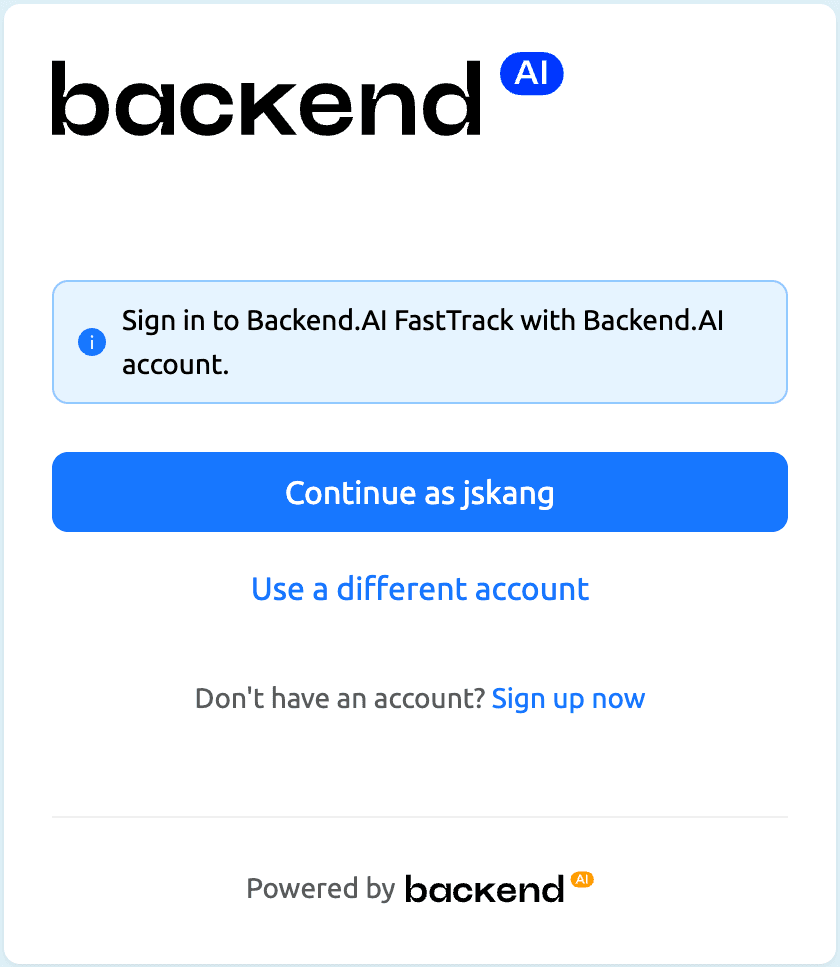 |
| Only the basic login button was displayed, making it impossible to verify account information. | The currently logged-in account is displayed, and an option to switch to another account is provided. |
Users logged in via SSO will see their currently connected account information displayed and can easily switch accounts using the ‘Log in with another account’ option.
4.3. UI re-design for advanced options
The advanced options collapse component has been redesigned. Specifically, it utilizes the DirectoryTree component to display task-specific mount paths in a tree structure.
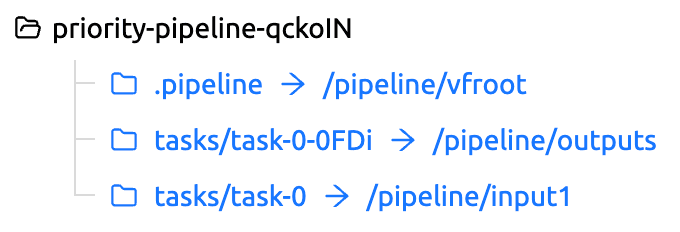
The folder mount paths for pipelines and tasks are displayed intuitively in a tree structure. Moreover, the applied status tag styles for pipelines and tasks can be observed.
4.4. Multilingual support
The status and result tags for pipeline jobs and task instances have been localized, and translations have been added to various UI elements, including the container log modal.
5. Prompt management
Prompt management functionality has been added, enabling systematic management of prompts delivered to AI models. View titles, content, and tags in the prompt list, and edit prompt content or add tags for classification in the editing panel.
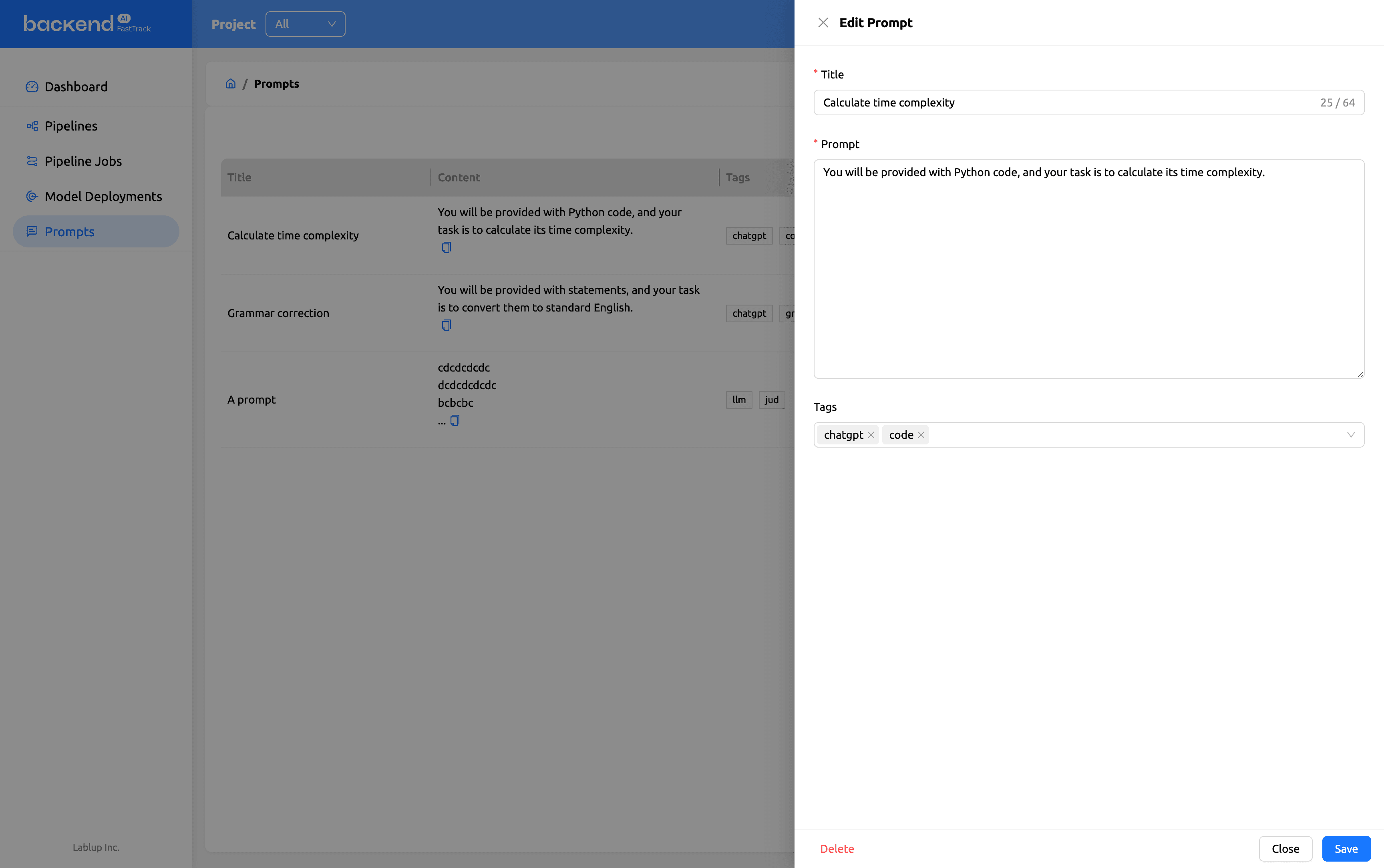
Manage prompts systematically in the prompt list and editing panel to deliver them to the AI model.
6. Pipeline CLI Tools
A comprehensive CLI tool for pipeline management has been implemented. This enables user to create, execute, and manage pipelines directly from the terminal, making automation scripting significantly easier. Below is an example of querying the pipeline list using the command: python -m ai.backend.cli fasttrack pipeline list
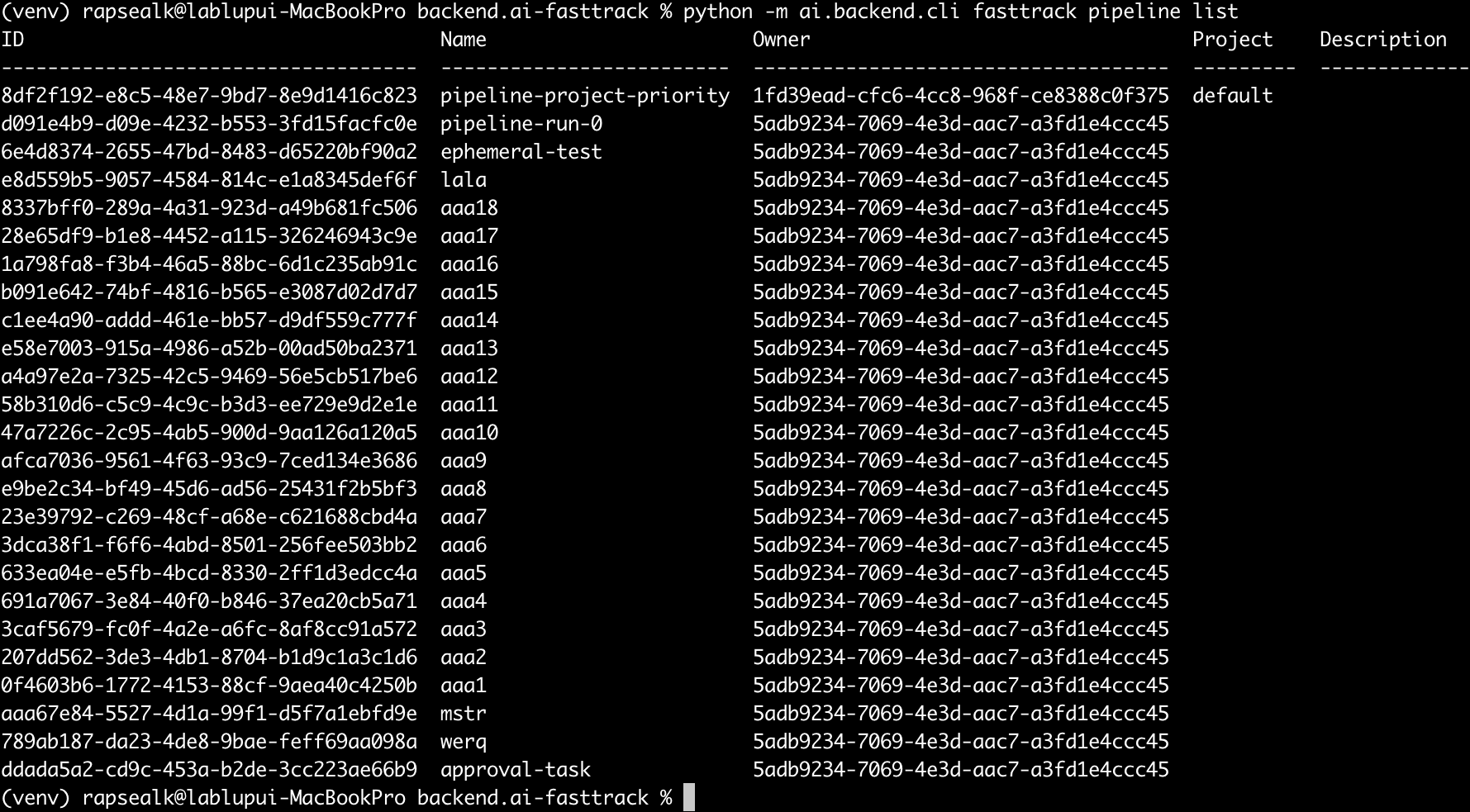
View the list of pipelines in the terminal to check their ID, name, owner, and project information.
7. Authentication and security
7.1. Keypair signature authentication
Backend.AI key pair signature authentication is supported. In addition to existing session-based authentication, a more secure authentication method can be selected.
7.2. Health check endpoint standardization
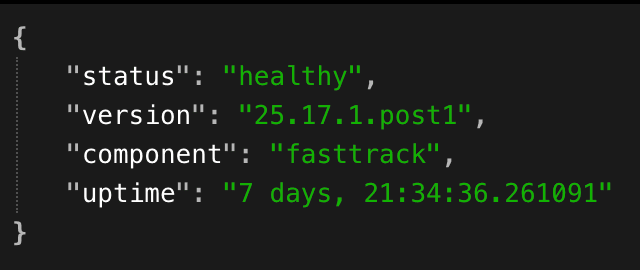
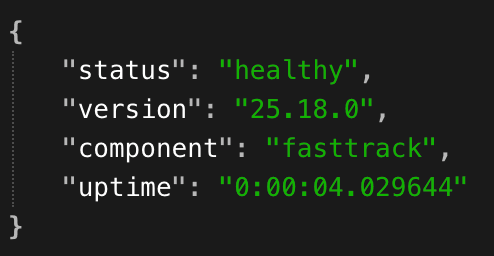
Health check endpoints have been standardized, making monitoring and operational management more convenient. Calling the health check API allows users to check information such as service status, version, component name, and uptime in JSON format.
8. Dashboard
A new dashboard page has been added, providing an at-a-glance overview of the entire system status. It allows comprehensive monitoring of information such as resource usage, active sessions, and pending approval tasks.
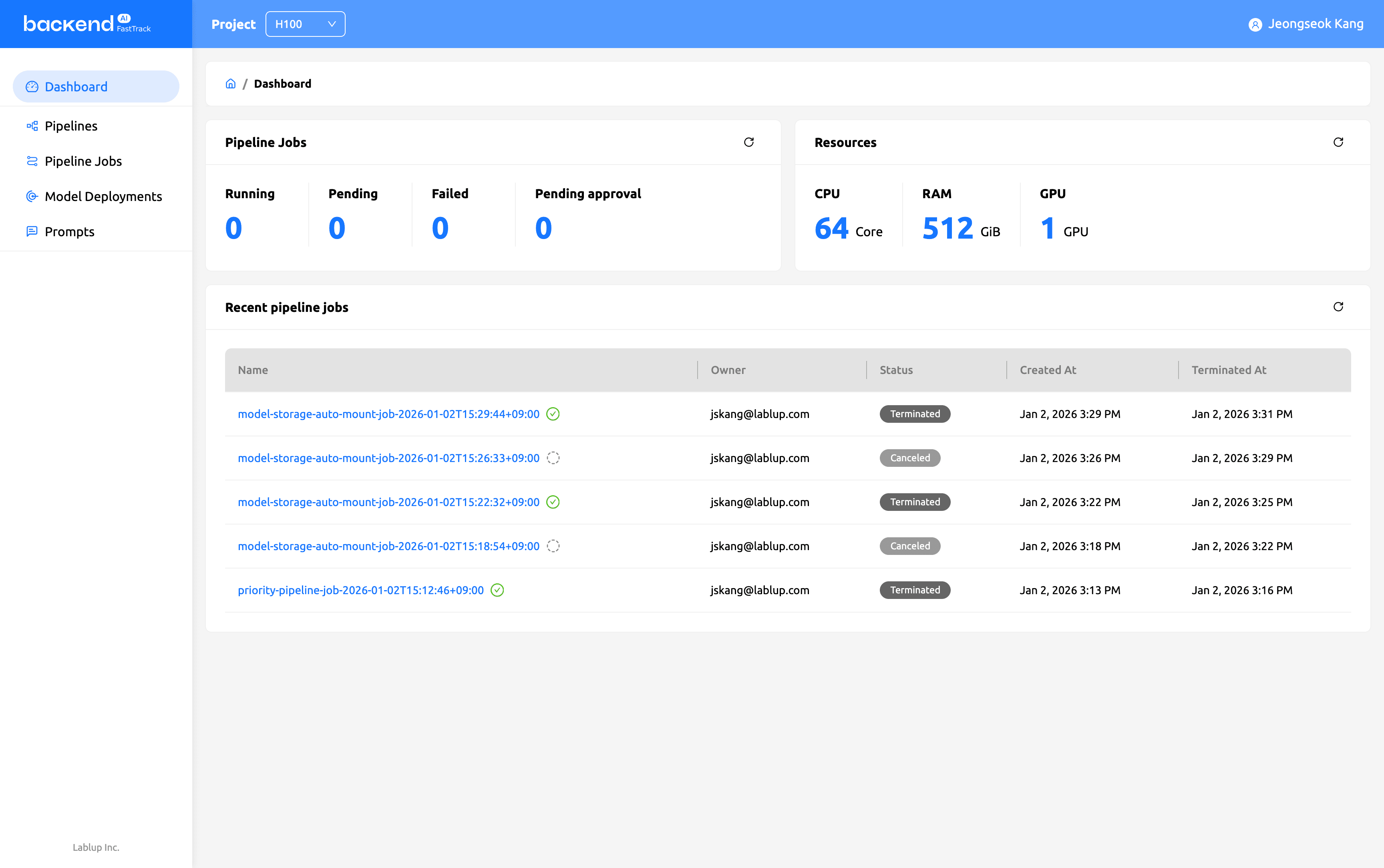
View pipeline job status, resource usage, and recent job lists all on one screen.
9. Expanded accelerator support
Display fractional GPU slots
The ‘fractional’ label is now displayed again on fractional accelerator slots to enable efficient resource utilization for light workloads, allowing for clear visibility into resource allocation status.
10. Technological improvements
10.1. Upgrade to React 19
Upgraded to React 19, enabling full utilization of the latest React features. Compatibility with Ant Design v5 has also been secured.
10.2. Migrating from Lodash to es-toolkit
The lodash library has been migrated to es-toolkit, resulting in reduced bundle size and improved performance. es-toolkit is lighter and optimized for the latest JavaScript standards, accelerating app loading speeds.
10.3. Upgrade to Python 3.13.7
The backend Python version has been upgraded to 3.13.7, enabling users to leverage the latest Python features and performance improvements.
10.4. Autopilot service
The auto-terminate-controller service has been renamed to autopilot, enabling more intuitive service configuration.
Author: Jeongseok Kang, Jinho Heo
